Appearance
Making Changes
What is a change?
Anytime an Update and/or Delete is performed, that is considered a Change.
Update
- Adding a new member
- Modifying details such as Name, Years, Vimeo, and/or Bio
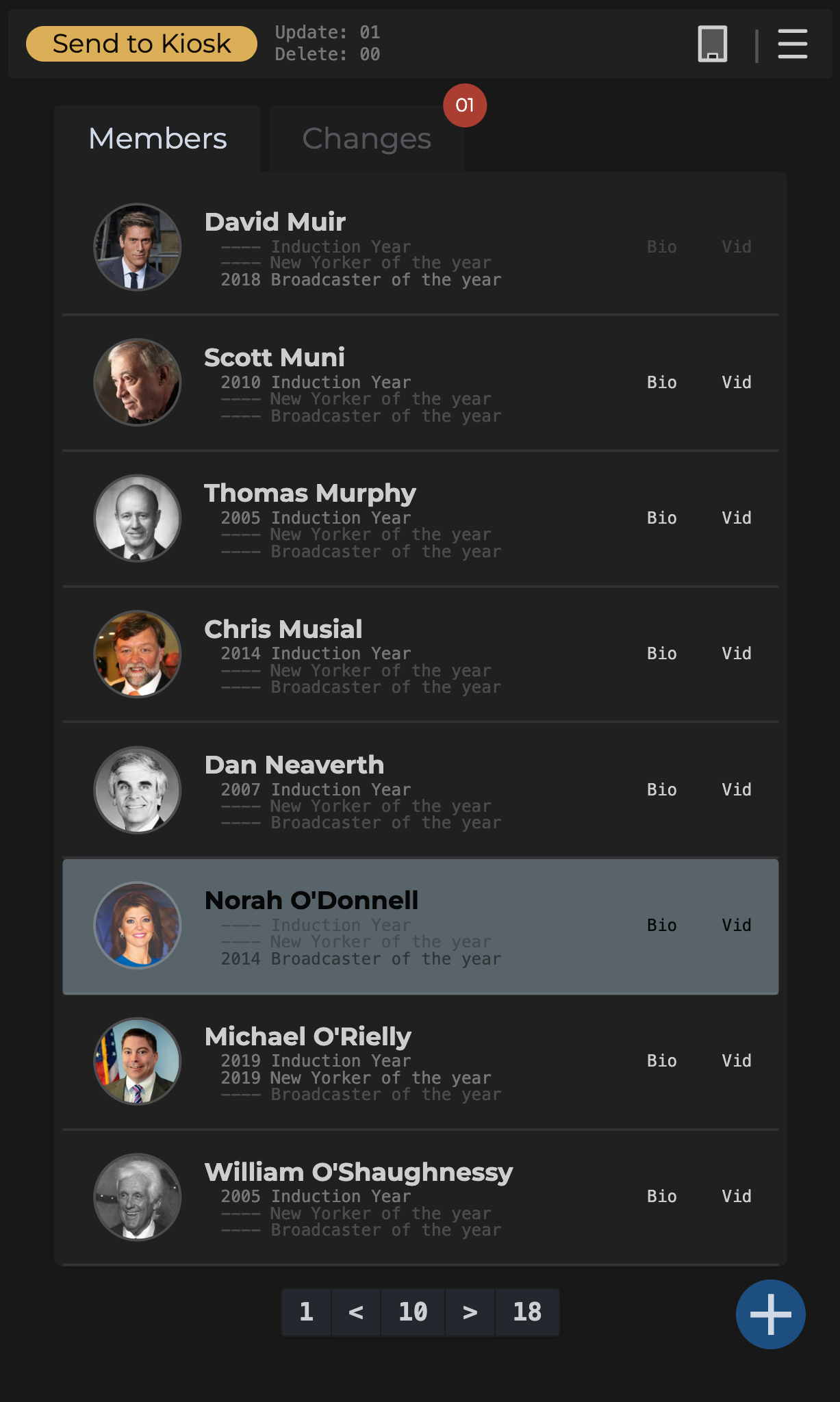
- Grey background on member
Delete
- Remove a member
- Red background on member
Status HUD
When any change is made, the Status HUD will display the "Send to Kiosk" button, and the stats of updates and deletions will appear.
Tabs & Changes
When a change is made, a red circle appears on top of the changes tab. This is a tally of all changes (Updates & Deletes)
Member Tab
- Grey background indicates an update (not a deletion) to the data
- Deleted member can only be seen on the
Changestab
Changes Tab
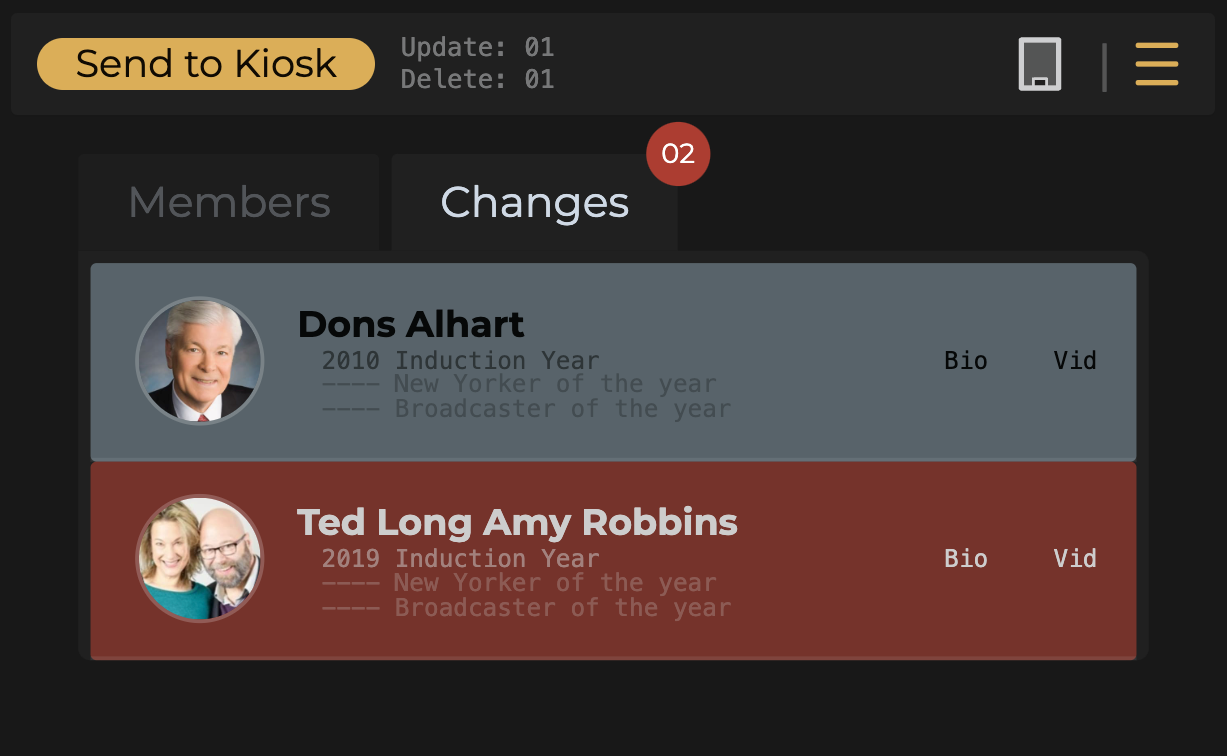
The Changes tab is where updates and deletions are staged before they get made. You can review your changes here and when your'e satisfied with them, click Send to Kiosk.
- Grey background indicates new data or an update to the data.
- Red background indicates member data marked for deletion.
Changes are made in bulk
The admin panel was designed for the changes to be made in bulk.This is so a preview of these changes can be seen in the kiosk preview.
Once satisfied with the changes, clicking the "Send to Kiosk" button will display a popup to confirm. Once confirmed the changes will be made.
Kiosk Preview & Changes
- Updates will be shown in realtime on the kiosk preview
- Deletions will simply be removed from the kiosk preview