Appearance
Tabs
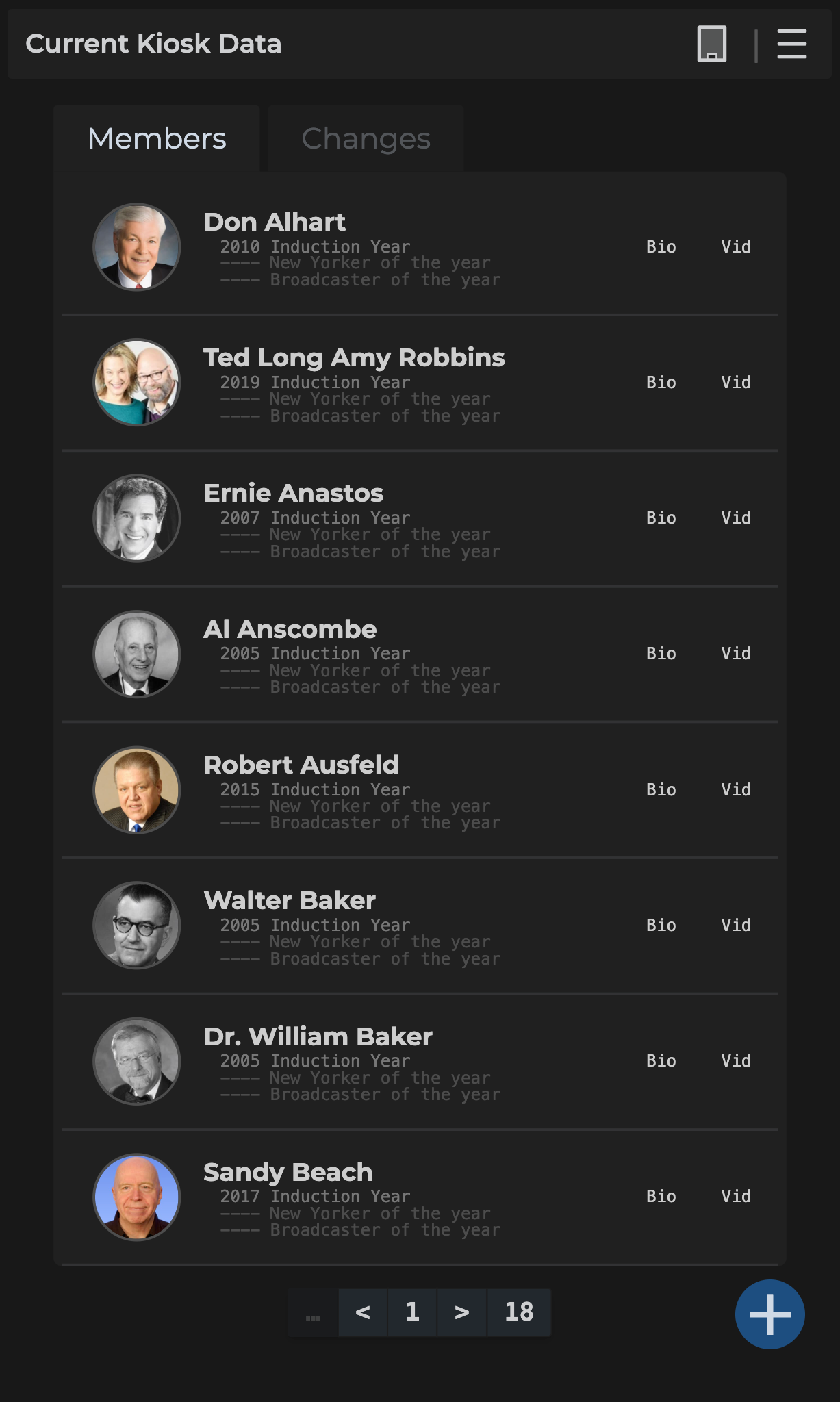
When the admin panel opens, there are two tabs under the Nav Bar:
- Members
- Changes
Members Tab
- Displays all members upon loading
- Clicking a member allows you to edit them
- Members are paginated on the bottom center
The next section covers how to make changes.
Changes Tab
Displays all changes made in your current session. An admin can review changes here before they are sent to the kiosk.
- All changes are staged here before they are sent to kiosk
- Displays all changes (updates, additions, and deletions)
- Clicking a member allows you to edit or restore them if deleted
- Changed members are paginated on the bottom center
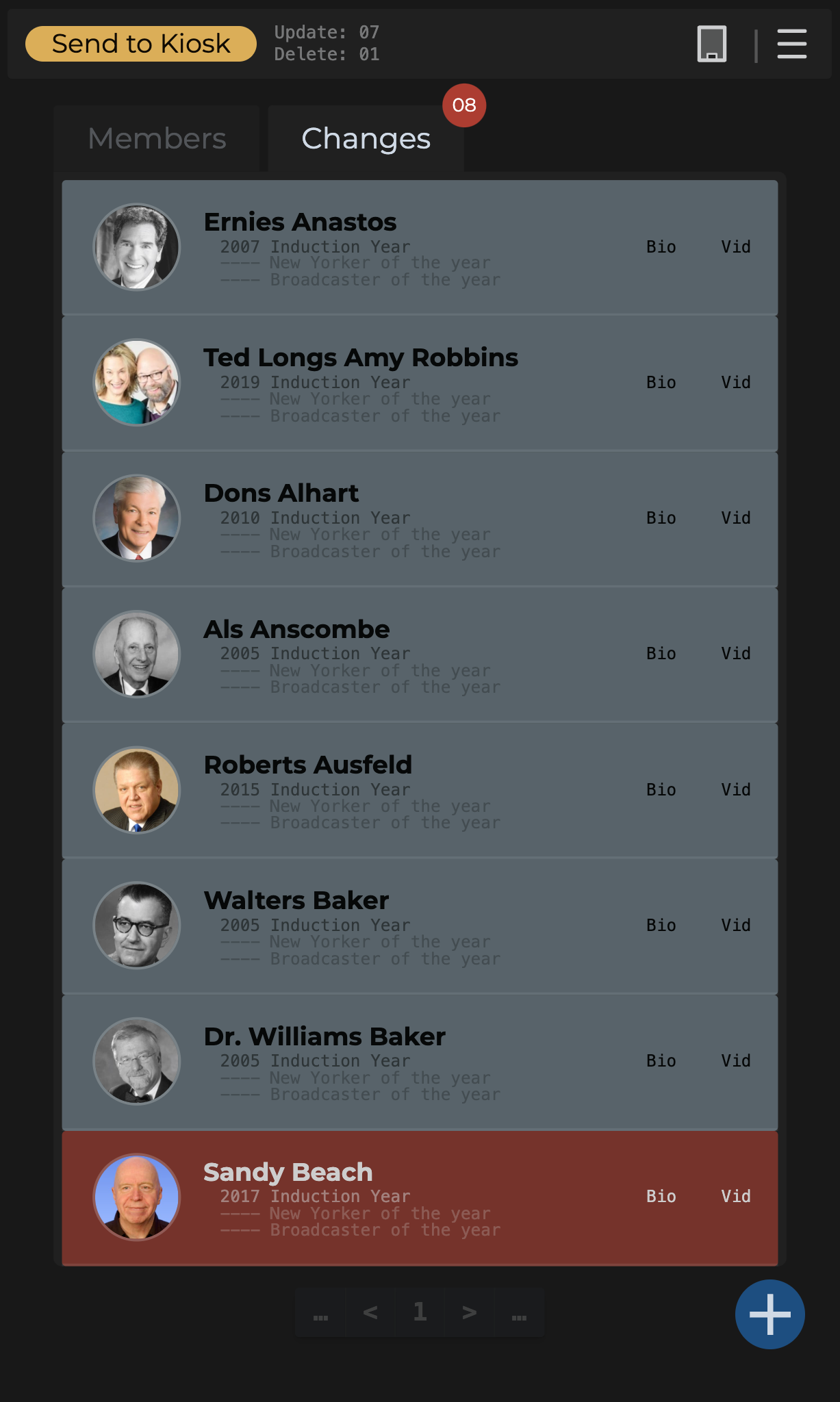
A few key differences after a change (add, update, or delete) is made. We'll expand on making changes in the next section.
- Status HUD displays a button and stats of updates and deletions to be made.
- Updates & Deletes combined count on the tab.
- Grey background indicates new data or an update to the data.
- Red background indicates member data marked for deletion.